

In Part 1 I talked about a back door in Entra Entitlement Management; group owners and admins can still bypass all that lovely governance and just add whoever they like to groups controlled by Access Packages. That means your carefully crafted access packages are basically optional. Great for chaos, terrible for compliance.
In this post we'll get hands-on and walk through how to actually lock things down. We'll build a setup where group owners keep their business context but lose their "Wild West" membership rights, and Entitlement Management actually does what it says on the tin.
By the end, you'll have turned your Entra groups from "open bar at a wedding" into "velvet rope at a club". Only the right people get the right access at the right times.

I should start by saying, officially, the Microsoft docs say Identity Governance can’t manage groups in restricted Admin Units, it’s listed in the limitations.

But practically, yes, it works. Microsoft vaguely alludes to this further down the page, but if you bailed at the bit that says you can’t, you probably never read that far. So here’s the step-by-step setup.
Step 1. We need to let Entitlement Management, specifically its service principal, manage groups inside our restricted Admin Units.
To make that happen, we'll create a custom role with the required permissions, then assign that role to the EM service principal on a permanent basis.
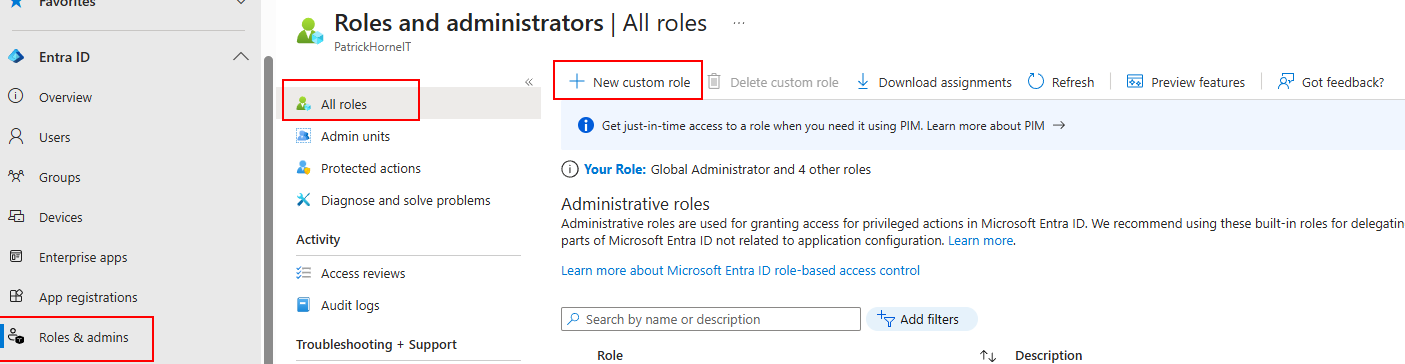
Go to “Roles and admins”, “All roles” and then “New custom role”.
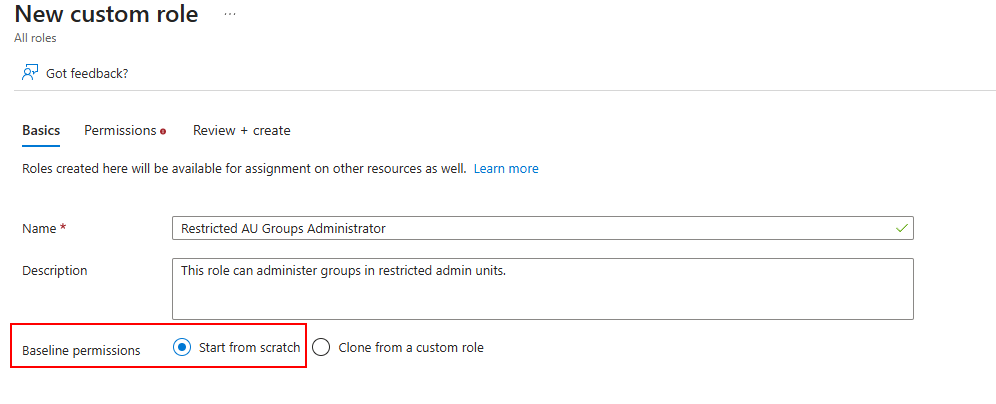
Give your new custom role a name and description that makes sense and choose to “Start from scratch” for the permissions.
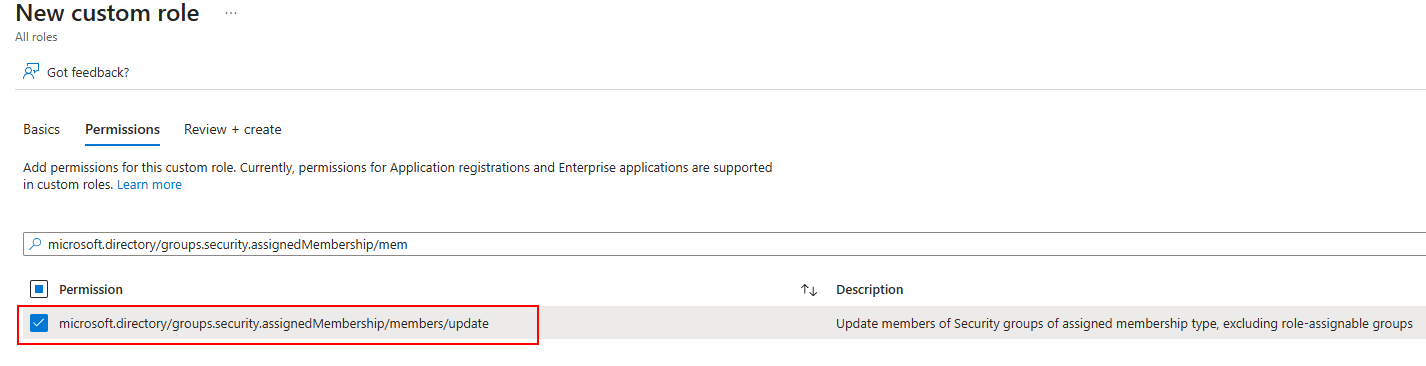
On the permissions section, add the following permission, then you can “Review and create”.
Step 2. Now we are going to create a Restricted Admin Unit. You'd be surprised how many people have never heard of or noticed this Entra feature before, and if I'm being completely honest, I didn't pay that much attention to them for a while either. Whenever I'd read about them they were described in the same vein as delegated OUs in Active Directory with the old "regional IT support" model use case which does make sense I suppose.
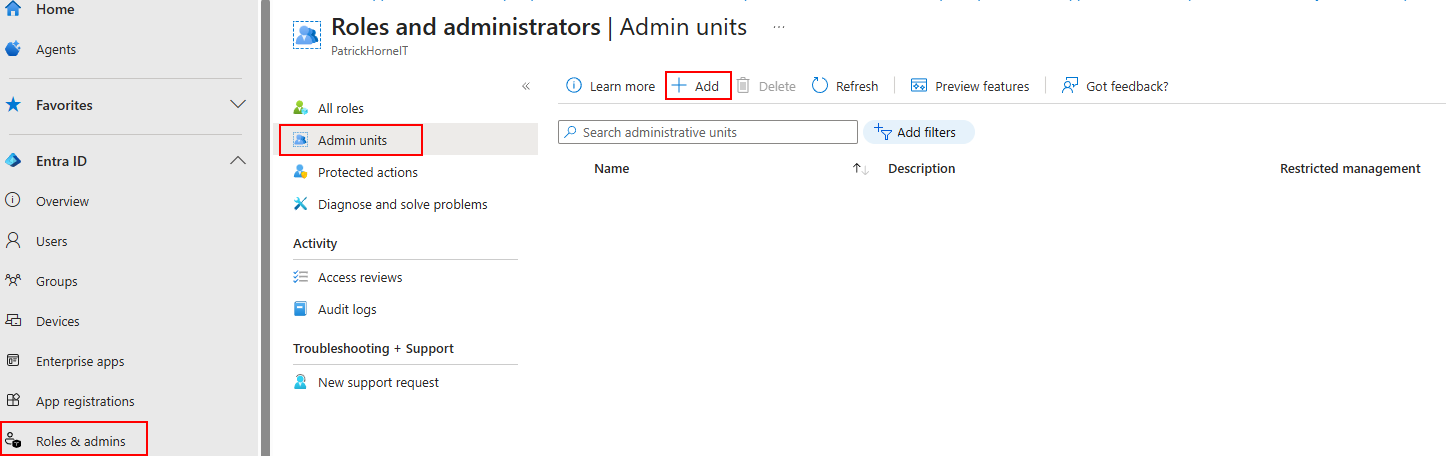
Go to the Entra portal, “Roles and admins”, “Admin units” and then “Add”.
Give the admin unit a useful name and description and DON’T FORGET to select “Yes” for Restricted management administrative unit. Once you create an AU, you cannot go back and change this setting either way.
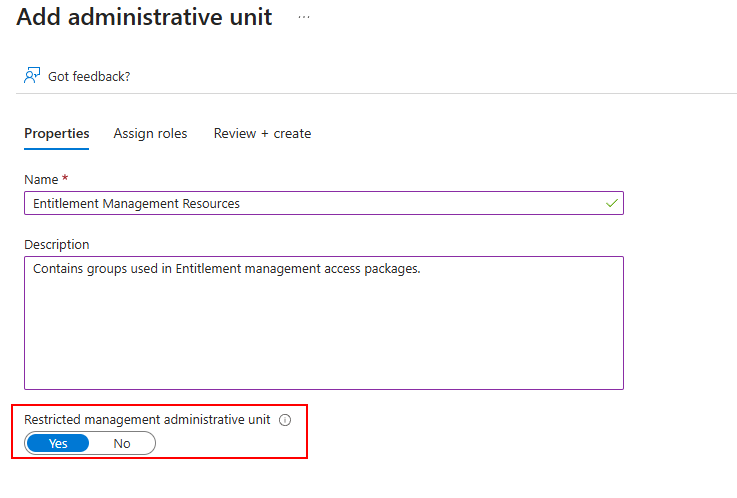
Click “Review+ create” and finish the creation now. If you go “Next; Assign roles” and try to assign any privileges during creation, the GUI will only allow us to select users at that point for some reason and we need to be able to see service principals.

Step 3. Now let’s permanently assign our new custom role to Entitlement Management with the scope of this new Admin Unit.
Go to your new Admin unit.

Click on “Roles and administrators” and choose the new custom role from the list.
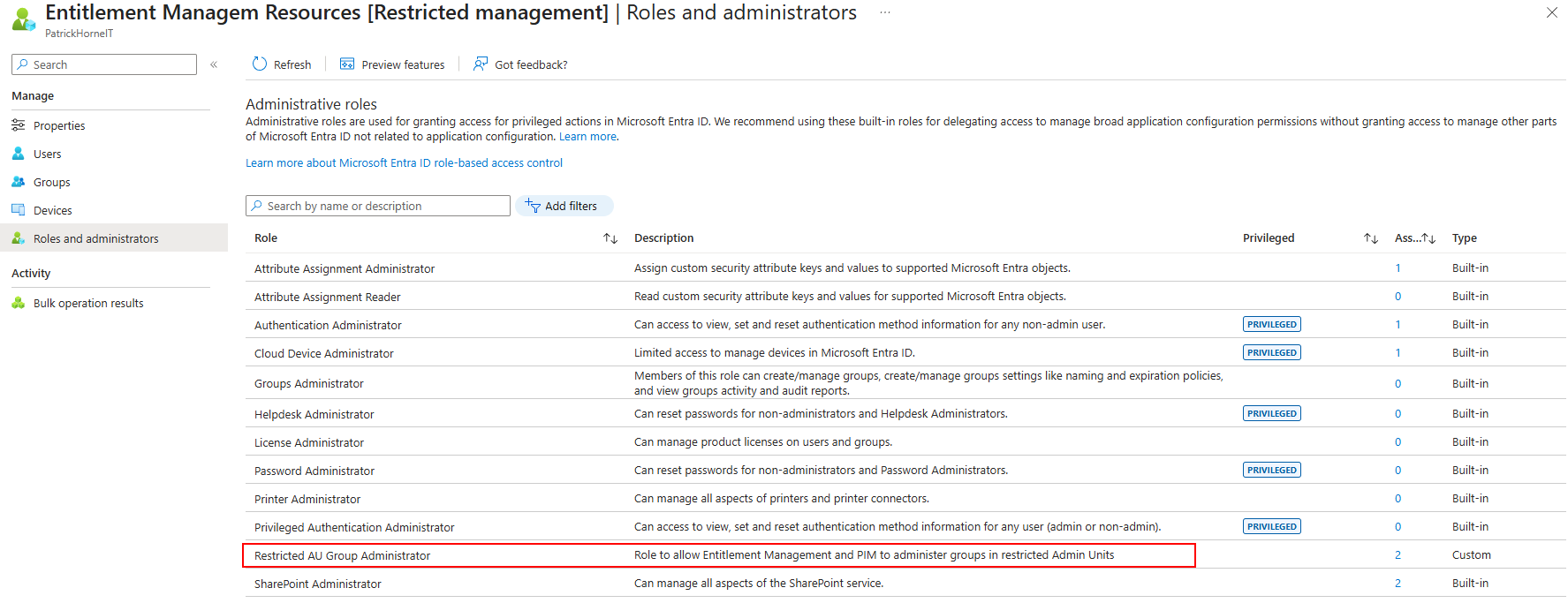
In Assignments, click “Add assignments”

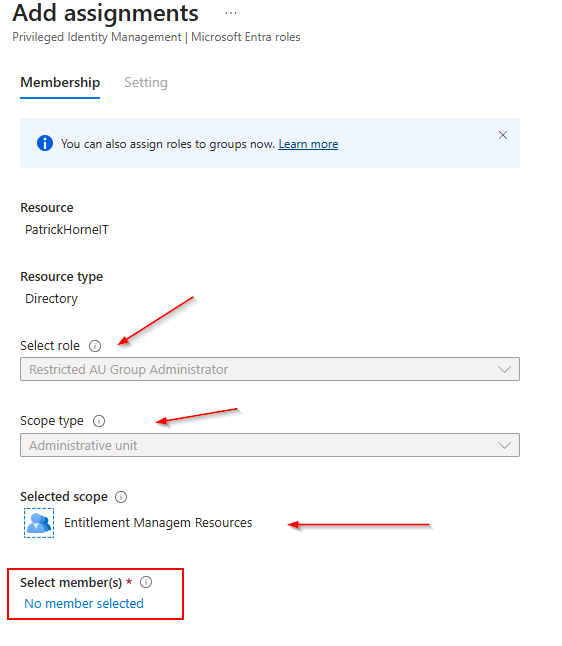
You can see on the next screen, we are assigning the “Restricted AU Groups Administrator” role with the “Scope Type” of Administrative Unit and the selected scope is our new Entitlement Management AU. If that lines up, click on “No member selected”.
In the search box enter “ec245c98-4a90-40c2-955a-88b727d97151“, you can see this will add a new column, Enterprise Applications (Service Principals) and you should see the Service Principal for Identity Governance, select this service principal.
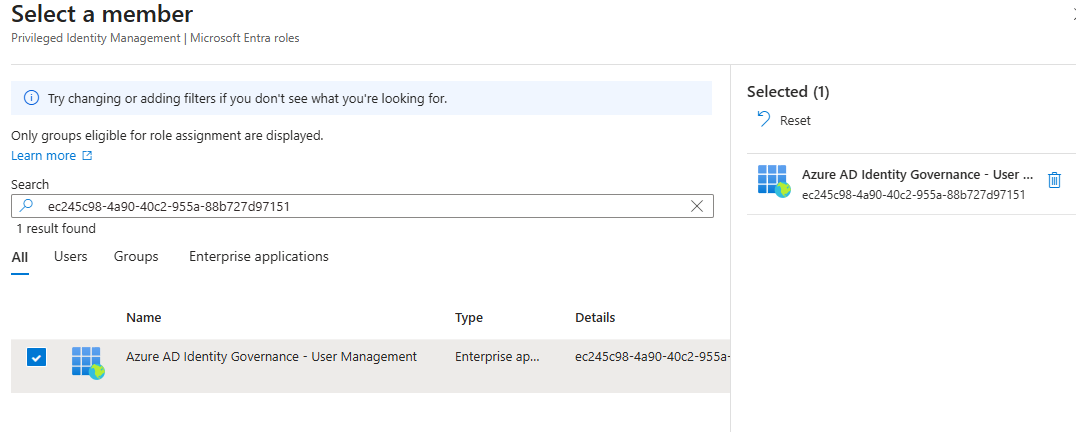
Note the warning that applications are only allowed for active assignments, this is great as we always want Identity Governance to have these permissions. Click “Next”.

Make the assignment permeant and Input something useful for other administrators to understand why this role assignment exists and then click “Assign”.
At this point I should mention that you could also assign this role to PIM using the same method but using the service principal Id of “01fc33a7-78ba-4d2f-a4b7-768e336e890e” (MS-PIM). You could then create an AU for PIM controlled groups although managing “role assignable” groups in this way is not possible.
Step 3. All that’s left is to add groups to the admin unit. You can create new groups within the AU or you can add existing groups. (Just make sure you are happy with the current group membership when you do that - See Part 3 coming soon)
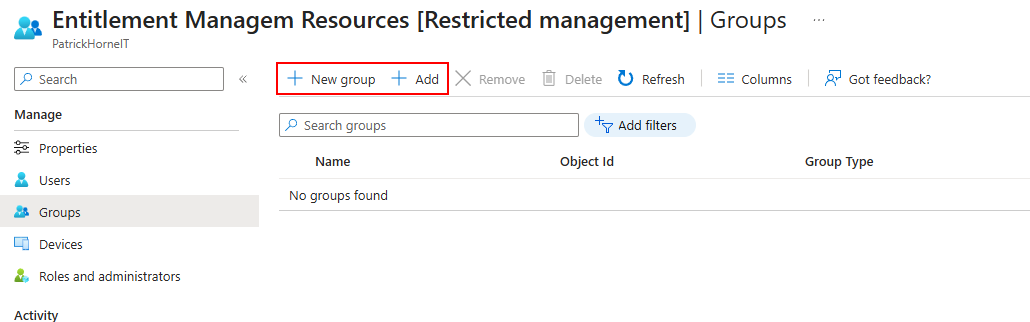
And that’s it, the only thing that can add users to a group in our AU is Entitlement Management. If another admin tries to sneak someone in because of the old classic the classic “boss says add them now”, this is what they’ll see.
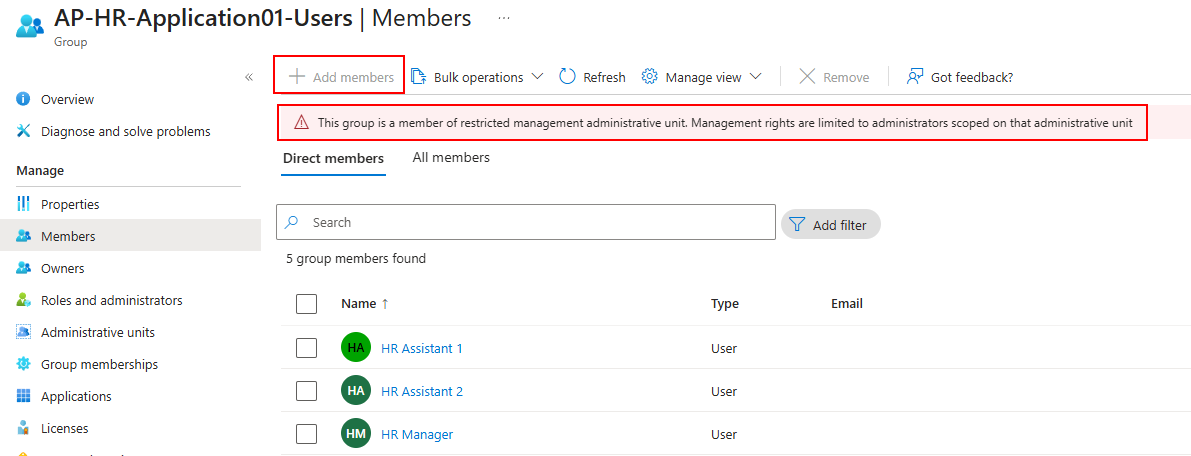
Sorry mate, this request needs to go via an access package.
Technically, someone could PIM into the Restricted AU Groups Admin role in an emergency and add users. But (1) it’s audited, and (2) honestly, why? Assigning the access package is just as quick.
Coming Up Next: Part 3 - The Migration
In this post, we focused on the implementation: creating a restricted Administrative Unit, wiring up a custom role for Entitlement Management, and moving your groups inside so every membership flows through proper governance.
In Part 3, I’ll take it a step further and show you my process for onboarding existing group members into access packages - because setting up the velvet rope is one thing, but getting everyone already inside the club to leave, line up and come through the front door again, is another.
Locking it down in practice is good, migrating cleanly is even better.